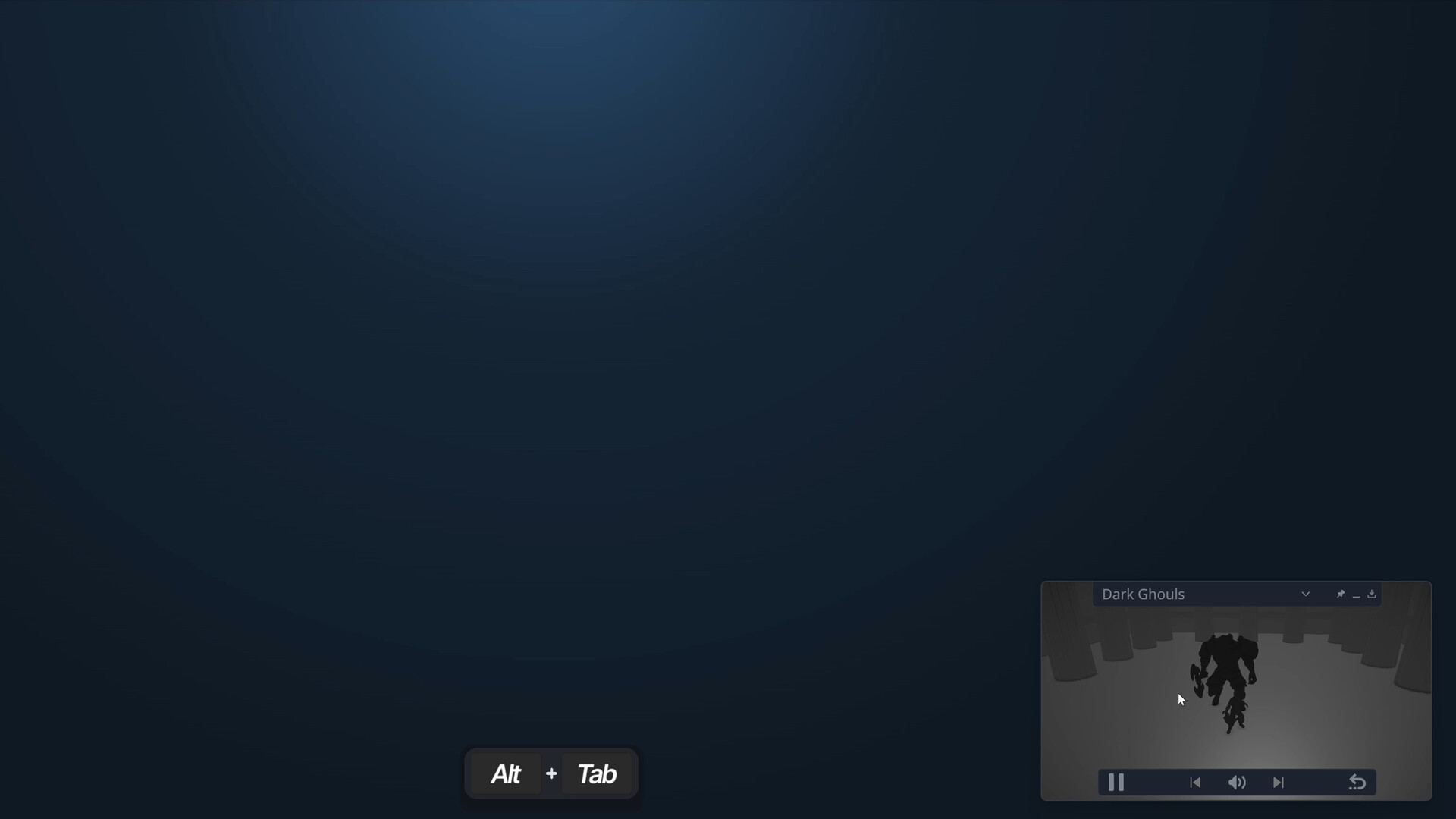
Game in Picture is a picture-in-picture desktop companion app built for players who frequently switch context. When you Alt+Tab, GiP keeps a live view of your game visible in a compact overlay so you don’t miss the action, while letting you pause single-player games and control their audio.
RECENT REVIEWS:
0
% of the 0
user reviews in the last 30 days are positive.
ALL REVIEWS:
0
% of the 0
user reviews for this game are positive.
Game in Picture (GiP) is a picture-in-picture desktop companion app built for players who frequently switch contexts. Instead of losing awareness when you Alt+Tab, GiP keeps a live view of your game visible in a compact overlay so you never miss the action.
GiP also brings together the controls you need during a session. Automatically follow your game when switching windows, switch sources manually when needed, pause and resume when necessary, control audio directly, and use media controls when supported. Keep GiP accessible from the system tray and place the overlay wherever it fits best. It is built for long sessions, frequent interruptions, and players who constantly multitask.
GiP makes interruptions less punishing and helps you return to the action faster with fewer missed moments.
Your game, your rules!
Four ways GiP can help
GiP keeps your game within reach when you step away from full-screen play.
Pause When You Need To
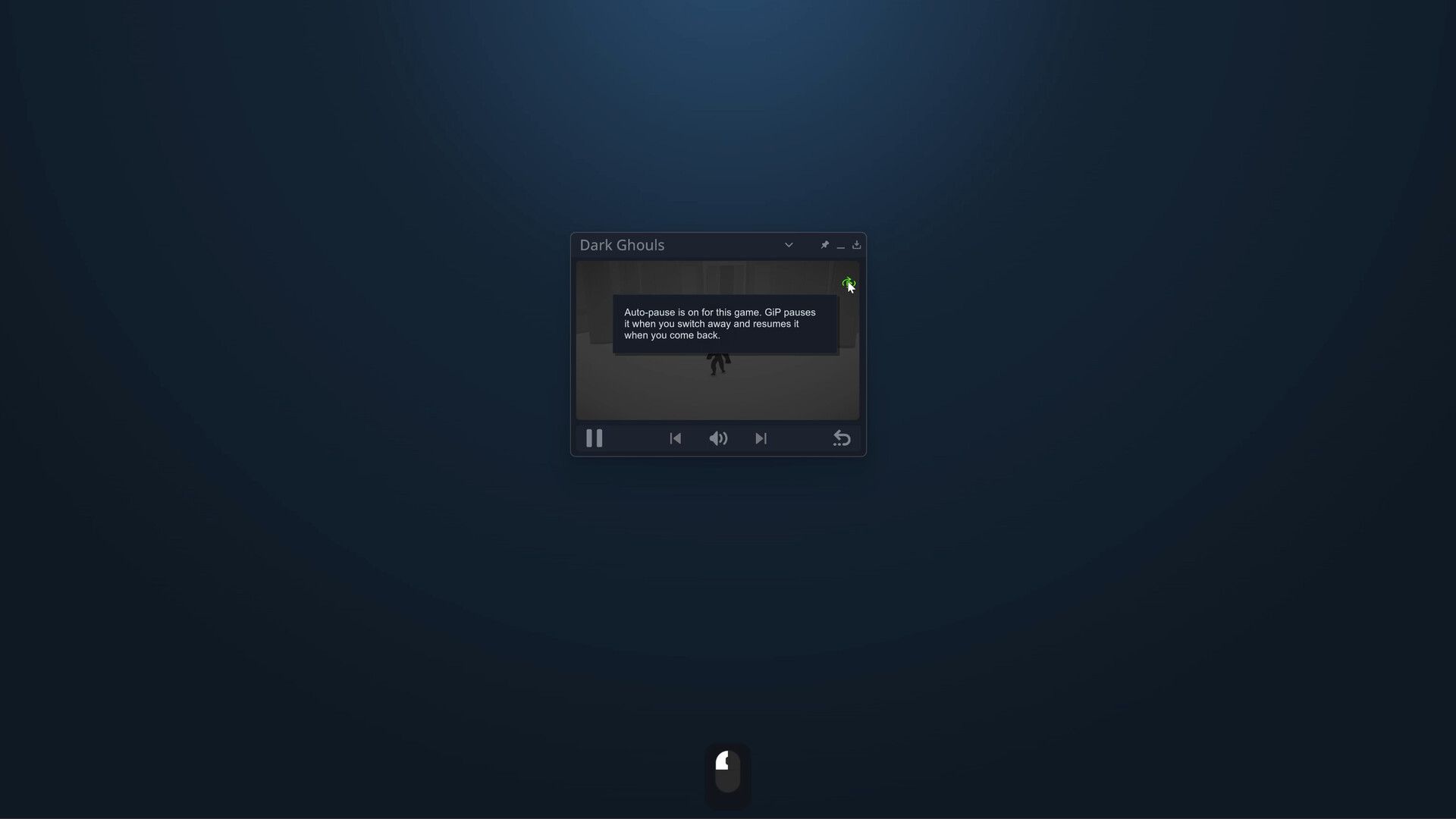
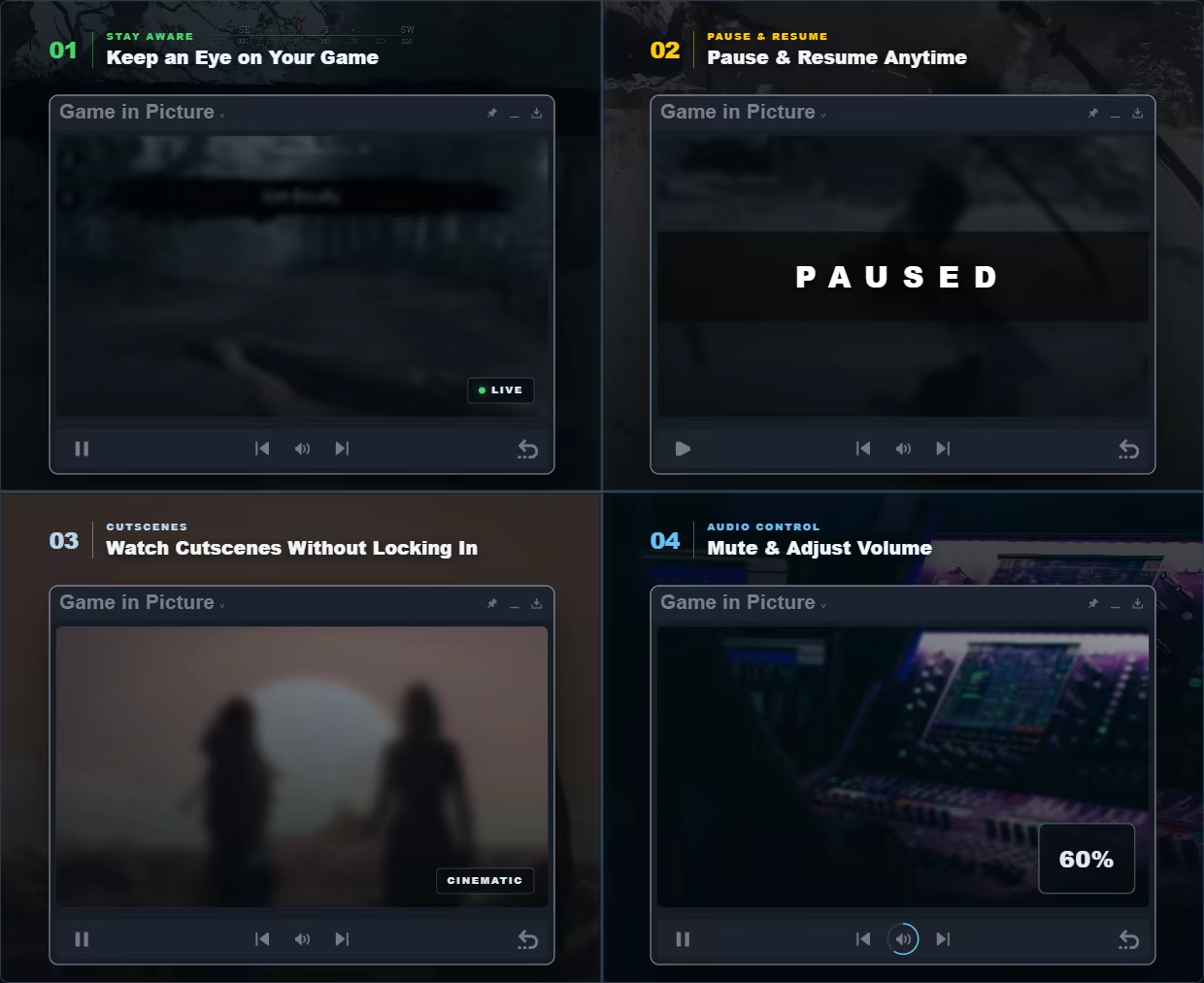
Pause and resume supported single-player or offline games directly from GiP when you need to step away. Auto-pause can be enabled separately for each game, allowing GiP to pause it when you leave fullscreen and resume it when you return. Before pausing software with online capabilities or active network traffic, GiP displays a warning so you can decide whether it is safe to continue.
GiP does not modify memory or touch save data. It does not rely on the game’s built-in pause system. Instead, it temporarily suspends the game process, freezing the game exactly where it is, even if the game has no pause function of its own.
Media and Audio Controls in One Place
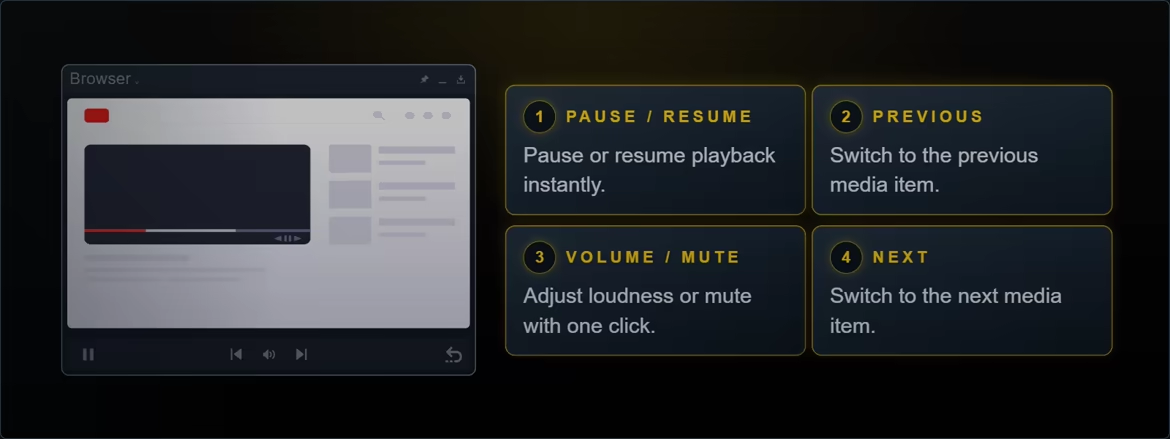
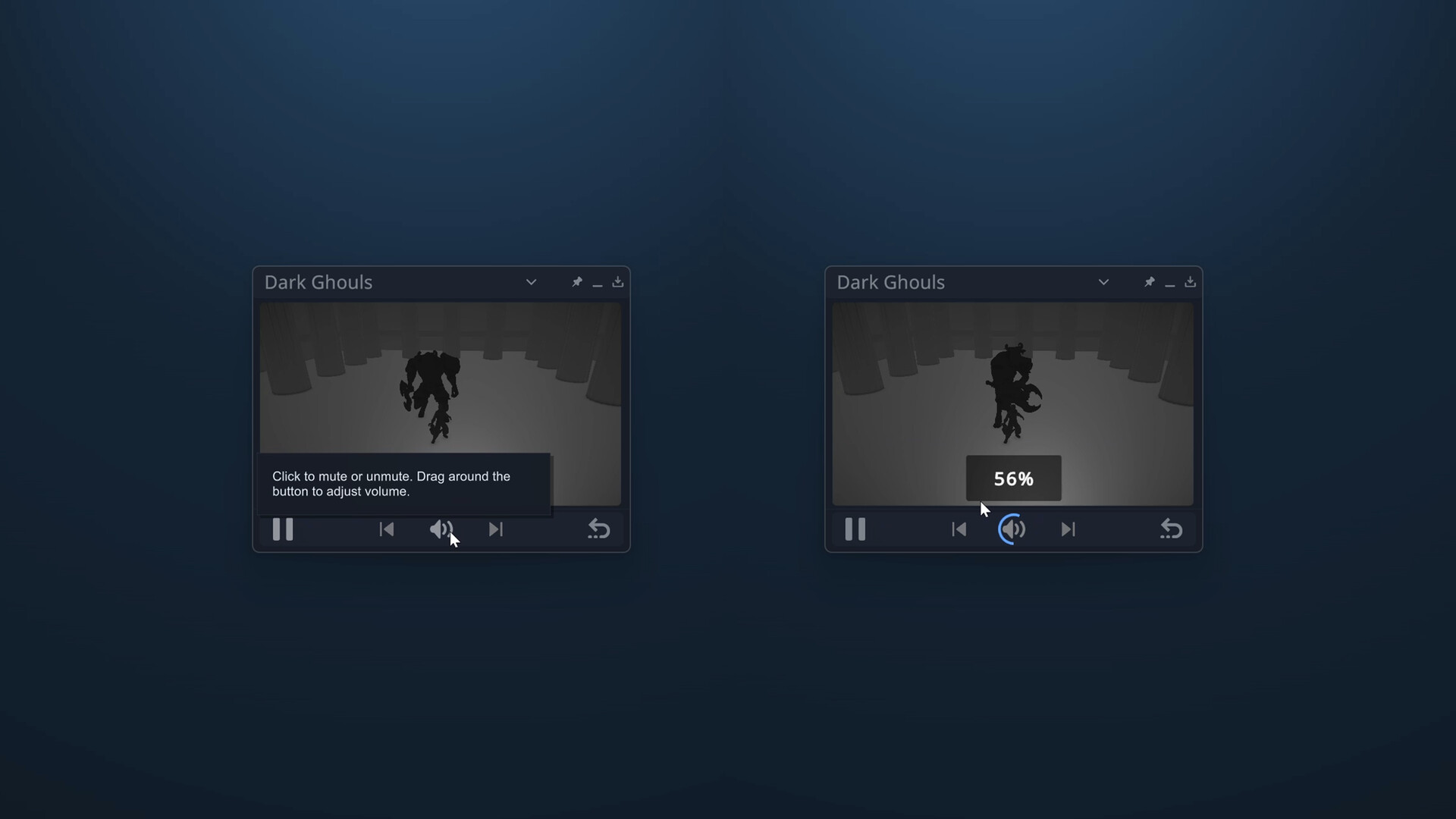
Control the tracked application’s sound without opening the Windows volume mixer. Click the audio control to mute or unmute, then drag around it to adjust volume. Auto-mute can silence the tracked window whenever you switch away and restore its sound when you return. For recognized browsers and media players, GiP also provides play/pause and previous/next commands when the application supports them.
Manual Source Control
By default, GiP automatically follows the fullscreen window you Alt+Tab away from. When you want tighter control, Explicit Tracking only changes the source when you hold the backtick key while Alt+Tabbing, while Manual Selection lets you choose a specific eligible window from the source list.
Manual Mode
Choose exactly which window GiP follows whenever you want direct control. Switch between your game, a browser, a guide, a video, or another app without rebuilding your overlay, then keep the selected source visible over the fullscreen application you are using.
Pin Mode
Keep GiP visible over fullscreen windows. Move between fullscreen apps while GiP shows the window you switched away from; when using Manual Source Control, your selected source remains fixed.
Themes and Visual Style
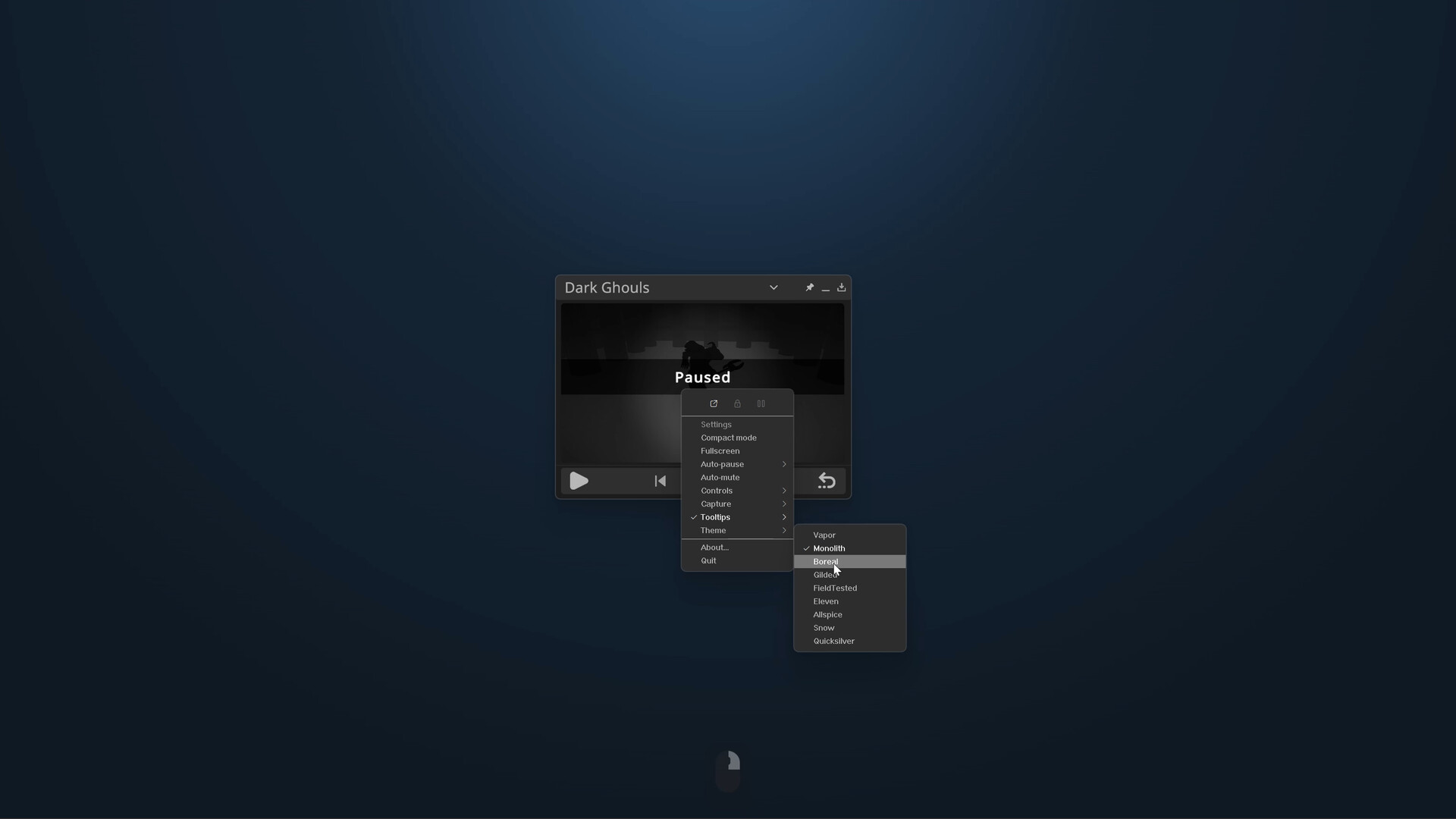
Match GiP to the rest of your setup with a selection of visual themes. Each theme updates the interface consistently while preserving clear controls and readable information across different games and desktop environments.
Flexible Overlay Placement
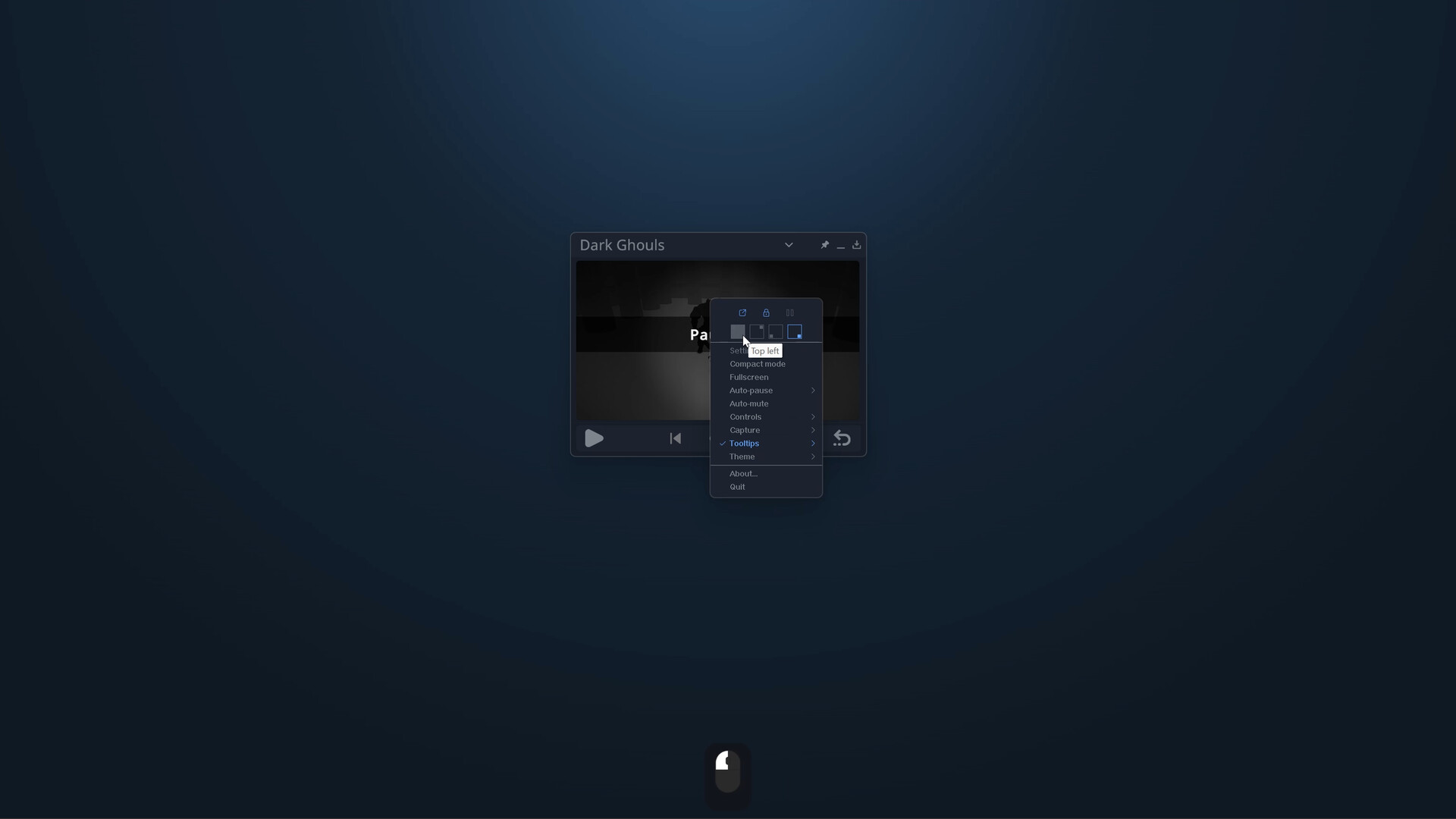
Resize and position GiP to suit your screen, game, and workspace. Keep the overlay locked in a corner, move it wherever it avoids important on-screen information, or use a compact floating layout that stays useful without taking over your display.
Expanded View Mode
Double-click GiP to switch between Normal View and Expanded View. Expanded View gives more of the window to the captured image and keeps surrounding interface elements out of the way. Move the pointer over GiP whenever you need its title bar or controls again. A separate Fullscreen option from the context menu can expand GiP across the entire display.
Tray Integration and Quick Access
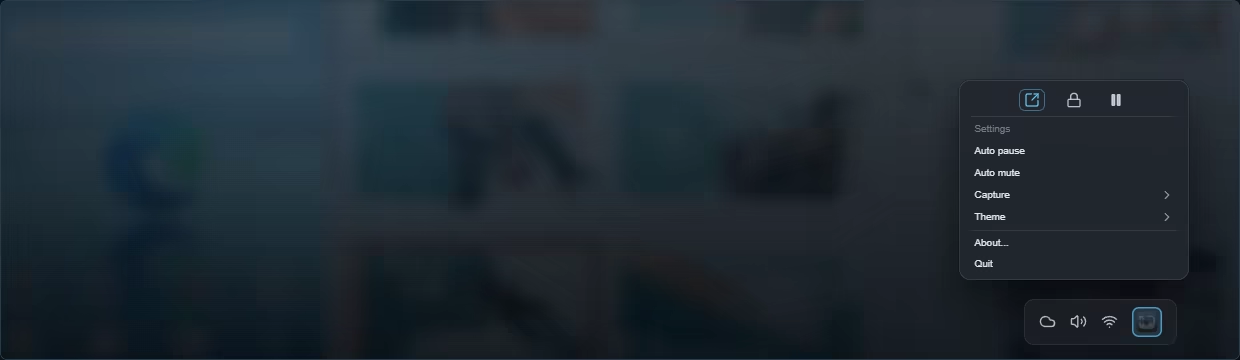
Keep GiP available for long sessions without adding unnecessary desktop clutter. Send it to the system tray when it is not needed, restore it quickly, and use convenient tray actions to reach common controls and capture options.
SYSTEM REQUIREMENTS
Minimum
Requires a 64-bit processor and operating system
OS
Windows 10 64-bit, version 1903 (May 2019 Update) or newer

 Pause When You Need To